
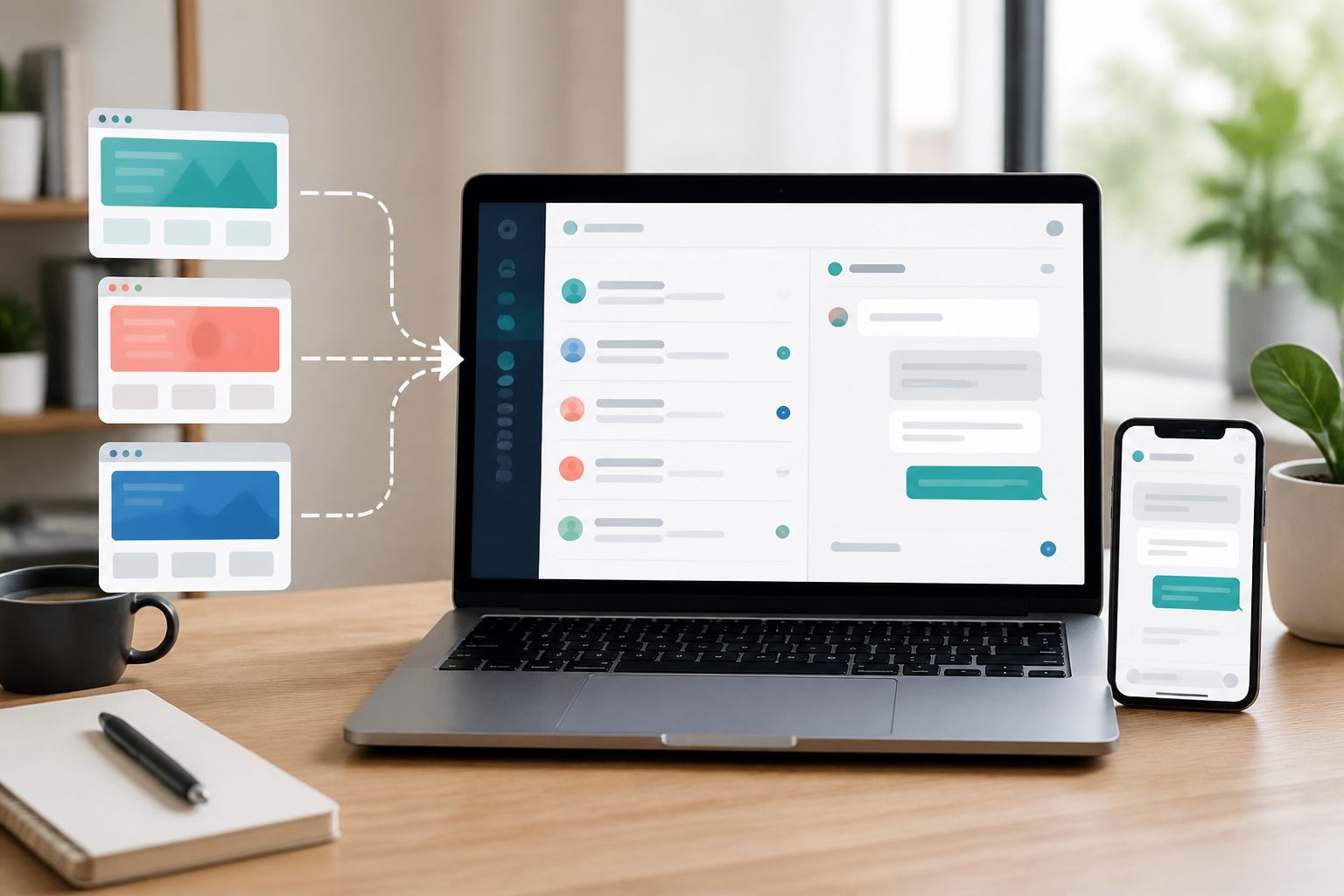
The short answer: centralize the inbox, not the website identity
Connect each website as its own site record, install only that site's key on that domain, and configure the widget for the business visitors are actually contacting. Conversations can then reach one Yapdesk account while retaining the connected website label agents need to answer in context.
A shared inbox is a good fit when the same owner or support team is responsible for several related websites and is allowed to see conversations across them. It is a poor fit when businesses have separate owners, incompatible privacy obligations, or staff who must be technically restricted to one brand. In that case, separate accounts may be clearer than a single combined workspace.
Yapdesk's current plans include one connected website and one owner login on Free. Pro and Pro AI support up to five connected websites and up to three agent logins. Core live chat and message mode remain free for the first website. AI replies and hybrid mode are available only with Pro AI.
Sources: Yapdesk plans and connected website limits · Yapdesk guide: Add websites and support agents
Decide whether one inbox fits the businesses
Begin with responsibility, not software. List every website, its owner, the agents who should see its messages, the expected response hours, and the types of information visitors may share. A single inbox is simplest when those lists overlap. If one team already answers the same phone line or support email for all sites, central chat can remove unnecessary switching.
Keep separate accounts when access must be isolated. Yapdesk agent access belongs to the account rather than a per-site assignment model, so an agent in a combined account may encounter conversations from the connected websites. Do not combine unrelated clients merely to reduce logins. Privacy, ownership, and correct customer handling matter more than a tidier browser tab.
Also check whether the brands can share an operating standard. One site may promise a five-minute live response while another only collects messages after hours. Those differences are manageable when they are documented per site; they become risky when agents assume every visitor has the same hours, policies, products, or next steps.
- The same organization controls every connected website
- The same agents are authorized to read the conversations
- The team can identify the site before answering
- Each site can keep its own settings and approved information
- Privacy notices accurately describe the shared service workflow
Give every website its own connected-site record
In Yapdesk, open Account, find Connected Websites, and add a clear name and normalized domain for each site. The dashboard shows the current number of connected websites against the plan limit. Each connected website receives its own public key, secret key, and embed script details.
Use names an agent can recognize at a glance. A legal company name may be less helpful than the public brand and location shown to customers. If two domains use similar names, add the city, service line, or storefront name. The label should help an agent answer the first message correctly without opening another system.
Never reuse a key from another connected website as a shortcut. The key determines which site receives the widget request and how the conversation is labeled. Install the new site's own key, send a marked test message, and confirm the intended website appears in the inbox before launch.
- Open Account and review the connected website limit.
- Add a recognizable website name and its domain.
- Copy the public key or prepared embed script for that site.
- Install the key only on the matching domain.
- Send a marked test chat and verify the website label in the inbox.
Install the correct key on WordPress and other websites
For WordPress, install and activate the Yapdesk plugin on the target site, then connect it with the public and secret credentials belonging to that connected website. Test the launcher while signed out of WordPress and in a private browser window. A dashboard preview alone does not prove that the public theme, cache, consent tools, or mobile layout load the widget correctly.
For a non-WordPress site, use the embed script shown for the matching connected website. Place it according to the platform's supported custom-code method, publish the change, and inspect the rendered page rather than only the editor. Avoid placing the same script twice through both a theme and a tag manager.
A WooCommerce storefront uses the WordPress chat widget on its public pages; Yapdesk does not claim a direct WooCommerce data integration. Agents should verify order-specific information in the store's authorized systems rather than assuming the chat knows order status, inventory, payment, or shipping details.
Keep settings and wording specific to each site
Open Chat Settings and choose Website To Customize before changing the widget. Set a title, launcher label, colors, message-mode wording, availability, schedule, and notification email that make sense for that site. After saving, switch to another website and confirm its settings did not inherit wording that belongs to the first brand.
Use visibly different titles or color accents when agents and owners also visit the sites. The public widget should still match each brand, but a small distinction helps testing and reduces the chance that someone reports the wrong site. Keep the launcher compact on mobile and verify it does not block checkout buttons, menus, cookie controls, or accessibility tools.
Pro AI configuration is also site-specific. Website context and brain text for one business should not contain another business's hours, pricing, policies, or offers. AI-only and hybrid replies are Pro AI features. If Pro AI is not enabled, each site continues to use human live chat or message mode without AI replies.
Sources: Yapdesk guide: Customize the chat widget · Yapdesk guide: Configure Pro AI and human handoff
Build a triage habit around the website label
Before replying, identify the connected website, read the visitor's page context, and confirm the current status. The same question can require different answers on two sites. Availability, service areas, return rules, booking steps, pricing, and escalation contacts may all differ even when one team owns both brands.
Write a one-page operating note for each website: what it sells, the common questions, approved links, escalation owner, live hours, message-mode promise, and information agents must never request. Keep those notes short enough to use during a real conversation. If a fact changes frequently, direct the agent to the authoritative system instead of copying a value into a static cheat sheet.
Use conversation search when a visitor returns or when an agent remembers the site but not the person's details. Yapdesk history search can use message text, visitor details, business names, or website domains. Start with the correct history range, then a distinctive term, and finally a status filter if needed.
Control notifications before adding more traffic
Connecting another website can increase alerts without increasing clarity. Test desktop, mobile, push, and ticket-email notifications with the website name visible where available. Agents should be able to tell which business needs attention before opening several tabs or sending a reply.
Choose one primary alert path per agent and keep the inbox as the source of truth. Duplicate browser, phone, and email alerts can make one new message feel like three separate incidents. Acknowledge and assign work in the dashboard so another agent does not respond to the same visitor from a different device.
Use message mode when a site is not staffed live. Set an honest expectation and collect a reliable reply address rather than presenting an unattended launcher as immediate support. Pro plans can schedule chat status by business hours; Free still lets the owner change between live chat, message mode, and off manually.
Sources: Yapdesk guide: Change chat status and reply mode · Yapdesk guide: Install the mobile app and notifications
Add agents without sharing the owner password
Pro and Pro AI include up to three agent logins. Give each person a separate login, send the temporary password through an appropriate secure channel, and have the agent change it. Remove access when a person leaves the support role. Shared owner credentials make accountability and offboarding needlessly difficult.
Train agents with marked test chats from every connected website. Each person should be able to identify the site, open the right context, reply, convert a conversation to a ticket, find it again, and recognize when the issue belongs to another owner. Test on the phone as well as desktop if mobile response is part of the plan.
If different agents must be restricted to different sites, do not assume a shared Yapdesk account provides that separation. Use separate accounts or another approved structure until site-level access controls match the requirement.
A 30-minute multi-website rollout test
Add one website at a time. Run this test before connecting the next domain so a wrong key, copied setting, or notification problem has only one likely cause. Use clearly marked test details rather than real customer information.
- Confirm the account and plan are appropriate for shared access.
- Add the website with a recognizable name and correct domain.
- Install only that site's public and secret keys or embed script.
- Check the closed launcher and open panel on desktop and mobile.
- Send a test chat from a distinctive page and confirm the site label and page context.
- Switch to message mode and verify the ticket or follow-up workflow.
- Test alerts for each agent without creating confusing duplicates.
- Search for the conversation by website domain and test phrase.
- Review the site's wording, privacy notice, escalation owner, and retention rule.
- Repeat the full test before adding another website.
Start with free live chat
Add Yapdesk to WordPress, answer visitors from one inbox, and use message mode when your team is away. Pro AI is available when you want an AI assistant trained on your business.