
Open Yapdesk in the correct browser
On iPhone or iPad, open app.yapdesk.com in Safari. On Android, open it in Chrome. Sign in to the account that receives chats for your website.
Add Yapdesk to the home screen
On iPhone, tap Share and choose Add to Home Screen. On Android, open the browser menu and choose Install app or Add to Home screen. Desktop Chrome users can also use Install App in the dashboard.
Open the installed Yapdesk icon
Launch Yapdesk from the new home-screen icon rather than the old browser tab. This gives the dashboard an app-like window and makes it easier to return to the inbox.
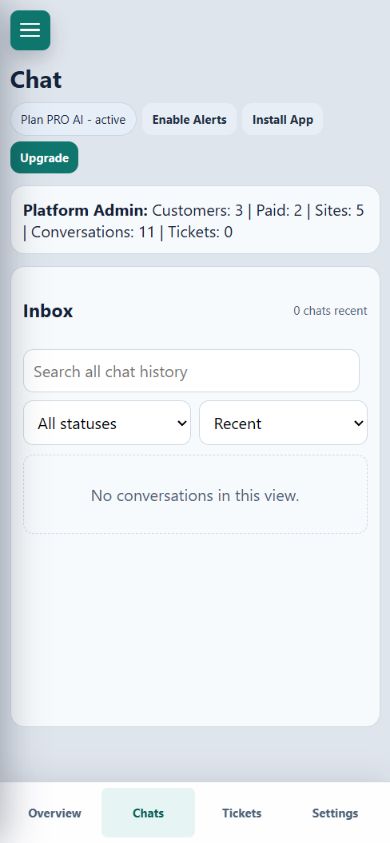
Enable and test alerts
Select Enable Alerts and approve the browser notification permission. In Chat Settings, use Test Alert to check the sound, toast, system notification, and tab attention behavior on that device.
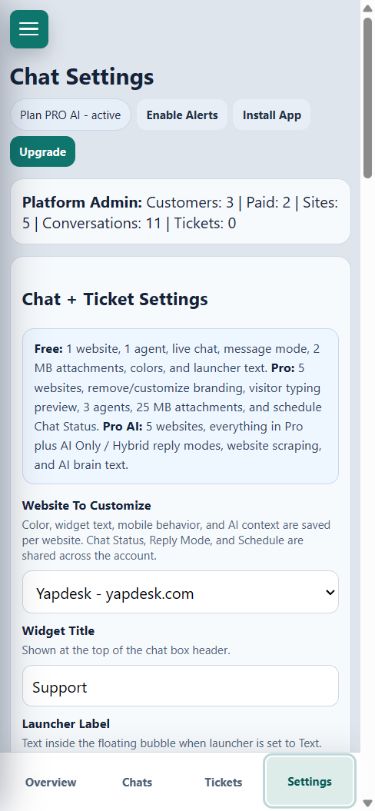
Keep the installed app healthy
Open the Yapdesk app regularly, keep notifications allowed in phone settings, and avoid force-closing it as a routine habit. After an operating-system or browser update, run Test Alert again. Also confirm that Focus, Do Not Disturb, and battery-saving rules are not silencing notifications.