
Choose the website to train
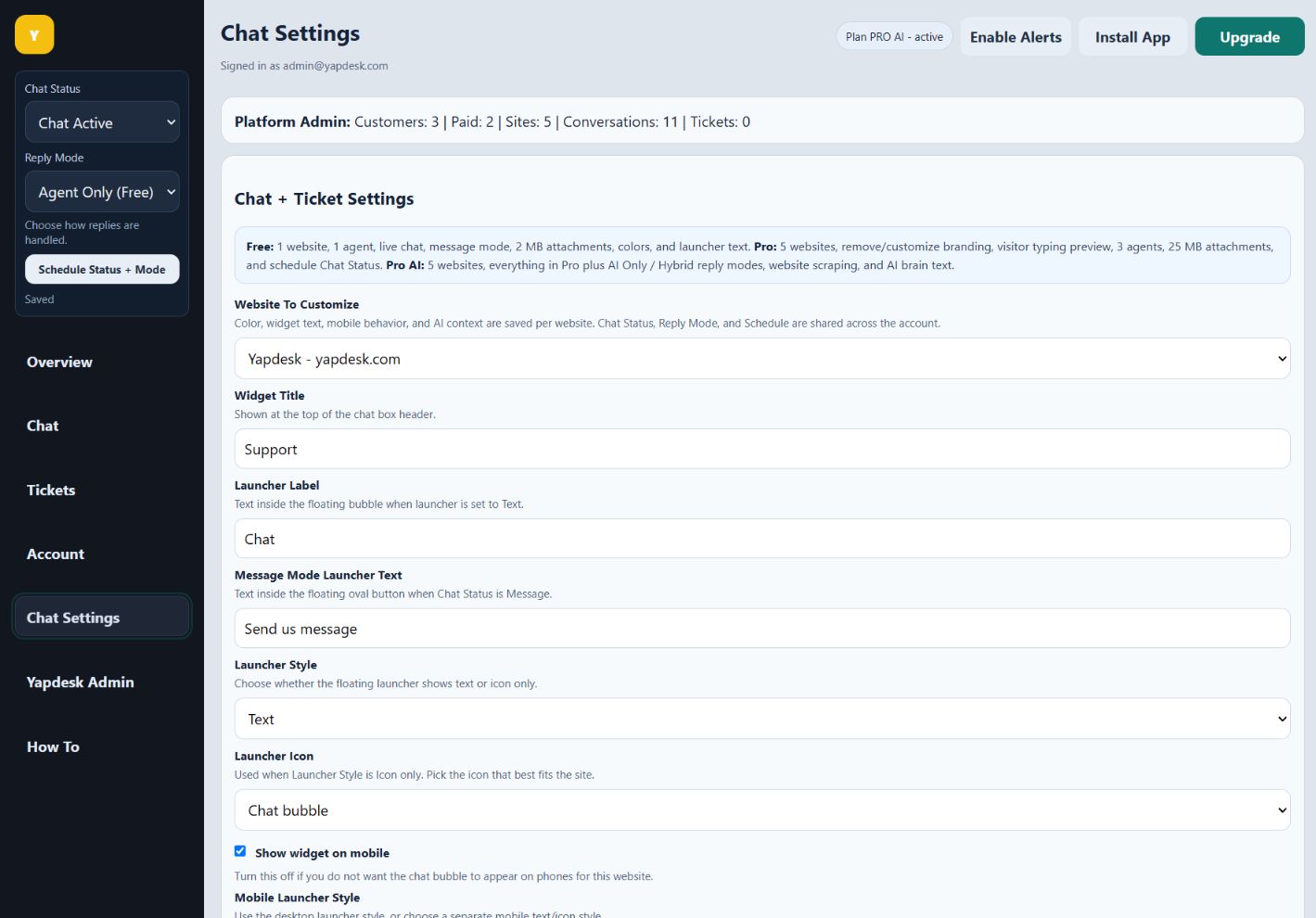
Open Chat Settings and select Website To Customize. AI website context and brain text are stored per website, so do not add one business's policies to another site's settings.
Scrape an approved website URL
Enter the public website URL whose content the assistant may use, then select Scrape. Review the saved context. Remove outdated claims, legal disclaimers that do not apply to support, or content copied from unrelated pages.
Write the AI Brain File text
Add concise business facts: services, locations, hours, policies, approved prices, escalation rules, and preferred tone. State what the AI must not promise and when it should collect a message for a person.
Test expected and unsafe questions
Use Live Widget Preview to test common questions, missing information, requests for refunds or account changes, and questions outside the business scope. Update the source material when an answer is incomplete instead of trying to fix every case with a vague instruction.
Choose AI Only or Hybrid and monitor
Select AI Only when the assistant should handle the conversation until escalation. Select Hybrid AI + Agent when staff may take over live. Review real conversations regularly, update changed policies, and use a human for requests that require identity checks, current order data, or judgment.