
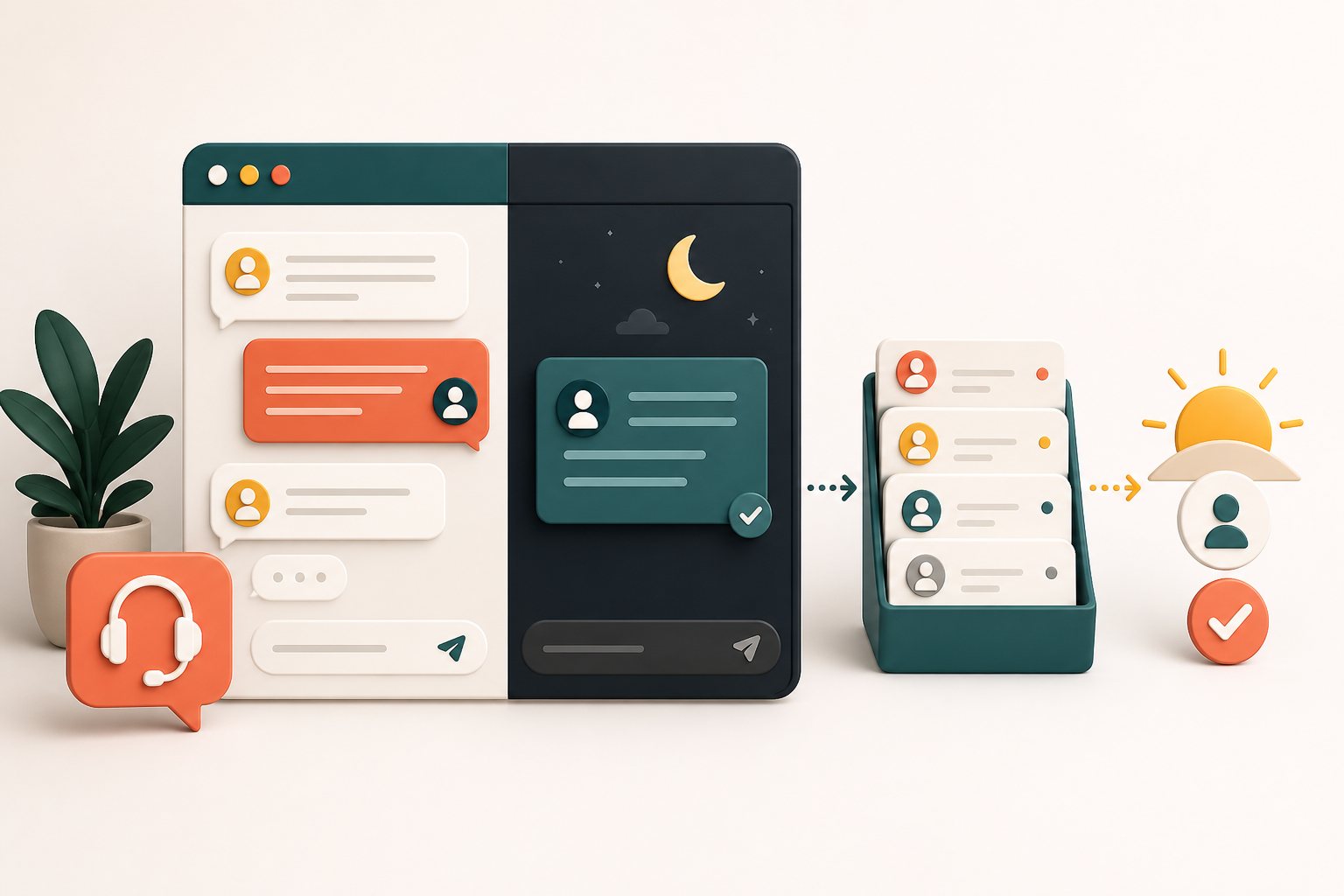
The short answer: make the offline state useful
The most trustworthy after-hours experience is an honest one. When no agent is available, do not leave a visitor staring at a live-looking window or promise an immediate response that the team cannot deliver. Show that the team is away, let the visitor explain what they need, and set a realistic expectation for what happens next.
That experience can still solve an important problem. A concise message form preserves the visitor's question while it is fresh. A well-organized inbox lets the next agent continue from that context instead of making the customer begin again. For common, low-risk questions, a controlled AI reply may provide useful help before a person returns.
The goal is not to imitate a staffed support desk all night. It is to create continuity: the visitor understands the current status, their message reaches the right place, and the team has a repeatable way to respond. That is what makes after-hours live chat useful rather than decorative.
Define the promise before choosing the mode
Start with the service promise your team can actually keep. Decide which hours are normally staffed, who checks new conversations, and when an overnight message should receive a reply. Use wording such as 'We are away right now and will follow up during our next support hours' if you cannot guarantee a precise time. If you publish a response window, make sure weekends, holidays, and time zones are included in the plan.
Then identify the questions that cannot wait. A sales enquiry about next month's project can usually enter the normal queue. A report about safety, fraud, a locked account, or an urgent service interruption may need a separate contact path. The chat should clearly direct those cases instead of treating every message as equal.
Write down ownership as well as timing. A shared inbox without an owner can quietly become a backlog. Decide who reviews new tickets at opening time, how they assign conversations, and how they mark a handoff complete. A small team can keep this simple, but the responsibility still needs a name.
- Published staffed hours and the time zone they use
- A realistic follow-up expectation for nights and weekends
- A separate route for genuinely urgent requests
- A named person or role responsible for the opening-time review
- A clear rule for assigning, replying to, and closing each message
Choose Message, Chat Active, or Pro AI deliberately
Yapdesk's free core live chat includes Chat Active and Message modes with Yapdesk branding. Use Chat Active when a person is ready to respond. Use Message when the team is away: visitors can leave their question and contact details for follow-up without being told that a live agent is present.
Pro adds scheduling for automatic status changes. Scheduling is useful when support hours are consistent, but it should not replace operational checks. Review the schedule when daylight-saving time, holidays, staffing, or seasonal hours change. A mode that says the team is active when nobody is watching is worse than a clear message form.
Pro AI adds AI-only and hybrid reply options, website context, and business training. AI-only can answer within the approved scope when no agent is present. Hybrid can begin with AI and allow a human to take over. These are Pro AI features, not part of the free chat plan. Choose them only after defining which information is safe to answer automatically and which requests must wait for a person.
Sources: Yapdesk guide: Change chat status and reply mode · Yapdesk guide: Configure Pro AI and human handoff
Ask for enough context, not every possible detail
An after-hours form should help the next agent answer, not turn a quick question into a lengthy intake process. Ask for the question, one reliable contact method, and any detail that materially changes the response. A service business may need a location and preferred date. A store may need the product name and the issue, but a general chat form should not request passwords or payment-card details.
Keep labels visible and instructions specific. W3C's Web Accessibility Initiative advises using simple, short forms and requesting only what is required to complete the process. It also recommends clear labels, understandable errors, and notifications that tell the user whether submission succeeded. Those practices are especially important after hours, when no agent is present to rescue a confusing form.
After the visitor sends the message, show an unmistakable confirmation. State that the message was received, repeat the expected follow-up period, and explain whether the visitor can close the window. If a field fails validation, identify the field and describe how to correct it without deleting the rest of the message.
Sources: W3C WAI Forms Tutorial · W3C WAI User Notifications
Build a next-morning queue that agents can trust
The visitor-facing form is only half of the workflow. Send each after-hours message into a queue the team already checks, then preserve the original question, contact details, page context, and conversation history. The first agent should be able to understand why the visitor wrote without searching several systems.
At opening time, review the oldest unassigned messages first, then identify requests with a real deadline or an urgent service impact. Assign an owner before replying. If research is needed, send a short acknowledgement rather than leaving the customer uncertain. When the issue is resolved or moved to another channel, update the ticket so another agent does not duplicate the work.
Yapdesk lets the team manage conversations and support tickets from the dashboard. Search and filters are most useful when agents use consistent statuses and ownership. Agree on a small vocabulary for open, waiting, and completed work, and review any conversation that remains untouched beyond the promised response window.
- Open the overnight queue at the start of the staffed period.
- Check for deadlines, urgent impact, and duplicate messages.
- Assign one owner to every conversation before work begins.
- Reply with the answer or acknowledge that research is underway.
- Record the outcome and close or update the ticket consistently.
Treat mobile notifications as an alert layer
Mobile alerts can help a small team notice a new message quickly, but they should not be the only record of incoming work. Device settings, battery-saving rules, browser permissions, connectivity, and signed-in sessions can affect notification delivery. The dashboard or ticket queue should remain the source the team checks deliberately.
Install the Yapdesk mobile app, allow notifications, and send a real test conversation from another device. Test while the app is open, in the background, and after the phone has been idle. Repeat the test on each phone used for support, because one successful device does not prove that every agent is configured correctly.
Decide whether anyone is truly on call after hours. If not, notifications can wait for the next staffed period and the visitor-facing message should say so. If an on-call person exists, define which alerts deserve interruption. Constant alerts for routine enquiries lead people to mute them, which makes the alert channel less useful when something important arrives.
Sources: Yapdesk guide: Install the mobile app and enable notifications
Give Pro AI a narrow, reviewable job
After-hours AI customer support works best on stable, public information: business hours, service areas, published policies, product guidance, and the steps for contacting a person. Keep the approved website context and business training current. Remove expired promotions and contradictory pages before expecting reliable answers.
Define hard boundaries. An AI reply should not invent inventory, appointment availability, account status, refunds, delivery dates, medical advice, or actions inside systems it cannot access. It should say when it does not know and offer the correct human follow-up. Test vague wording, misspellings, edge cases, and direct requests for an agent, not only the ideal questions used during setup.
NIST's voluntary AI Risk Management Framework emphasizes managing risk across the design, use, and evaluation of AI systems. Its generative AI profile also calls for clear roles and responsibilities in human-AI arrangements. For a support workflow, that means someone owns the approved content, reviews real conversations, records recurring failures, and decides when automation should be narrowed or turned off.
Review after-hours answers regularly. Look for confident statements without support, missed handoffs, old policy details, and questions the AI should never answer. A short weekly review during launch is more useful than assuming that a one-time setup will remain accurate.
Sources: NIST AI Risk Management Framework · NIST Generative AI Profile
Protect the information visitors leave behind
Messages may contain names, email addresses, phone numbers, order references, or details the visitor considers private. Explain what the chat collects, why it is needed, where it is sent, and how long it is retained. Restrict dashboard access to people who need it and remove data that no longer serves the stated purpose.
The WordPress Plugin Handbook's privacy guidance recommends purpose limitation, collection limitation, data minimization, transparency, security, and retention controls. It also tells plugin developers to document personal data sent to external services and provide appropriate privacy-policy information. Site owners should review that information and make the site's own notice accurate for their business and jurisdiction.
Do not ask visitors to submit secrets through ordinary chat. Add plain guidance near the form when necessary, and train agents to move sensitive processes to an approved channel. Privacy requirements vary, so use official guidance and qualified advice for the regions where the organization operates.
Sources: WordPress Plugin Handbook: Privacy · WordPress Plugin Handbook: Suggesting privacy policy text
A 20-minute after-hours live chat test
Run this check as a visitor on both desktop and mobile. Use a real email address and follow the message all the way into the agent workflow. The test is complete only when the visitor receives a clear confirmation and the team can find, own, and answer the conversation.
- Write the exact offline promise and confirm that the team can meet it.
- Switch Yapdesk to Message mode and send a realistic enquiry.
- Check visible labels, keyboard navigation, mobile layout, errors, and the success message.
- Confirm that the conversation appears in the expected dashboard or ticket queue.
- Verify mobile notifications on every device that is meant to receive them.
- Assign the conversation, reply, and complete the ticket using the normal workflow.
- If Pro scheduling is enabled, test the transition into and out of staffed hours.
- If Pro AI is enabled, test an approved question, an unknown question, and a request for a person.
- Review the privacy notice and remove any unnecessary required fields.
Start with free live chat
Add Yapdesk to WordPress, answer visitors from one inbox, and use message mode when your team is away. Pro AI is available when you want an AI assistant trained on your business.