
Decide when a chat needs a ticket
Use a live chat for an immediate conversation. Create or convert to a ticket when the question requires later research, an email reply, or ownership beyond the current chat session.
Open the Tickets view
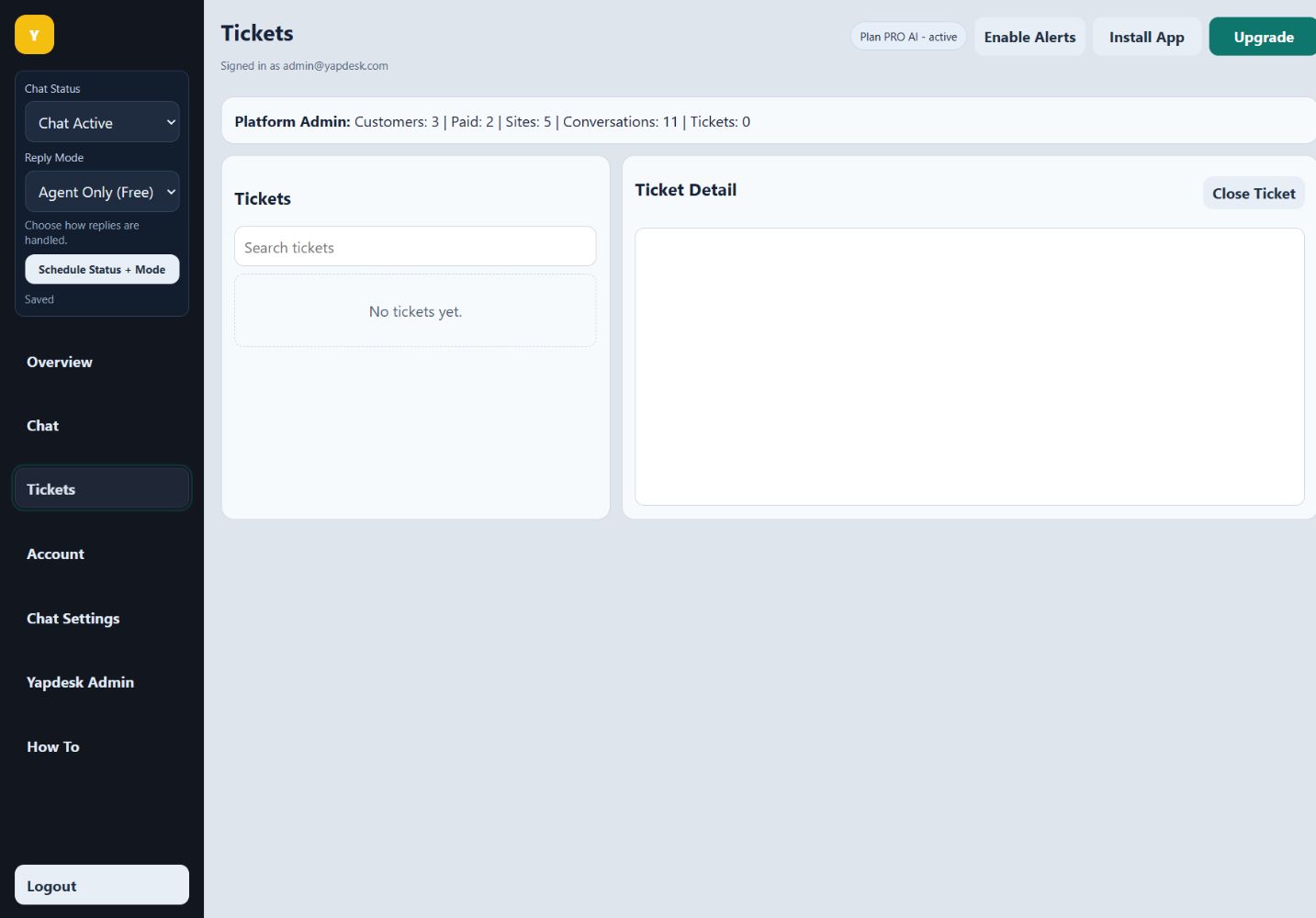
Select Tickets in the desktop sidebar or bottom mobile navigation. The queue and ticket detail appear together on larger screens and stack for phone use.
Search the ticket queue
Use Search tickets to find a customer, subject, or message. Search is especially useful when a follow-up began as a live chat and the customer returns later.
Reply with the complete next step
Open the ticket, review the earlier messages, and send a reply that explains what happens next. Attach only supported files and avoid requesting passwords, card numbers, or other sensitive credentials.
Close resolved tickets
Close the ticket when no further action is expected. If the customer replies again, review the full thread before responding so they do not have to repeat the issue.