
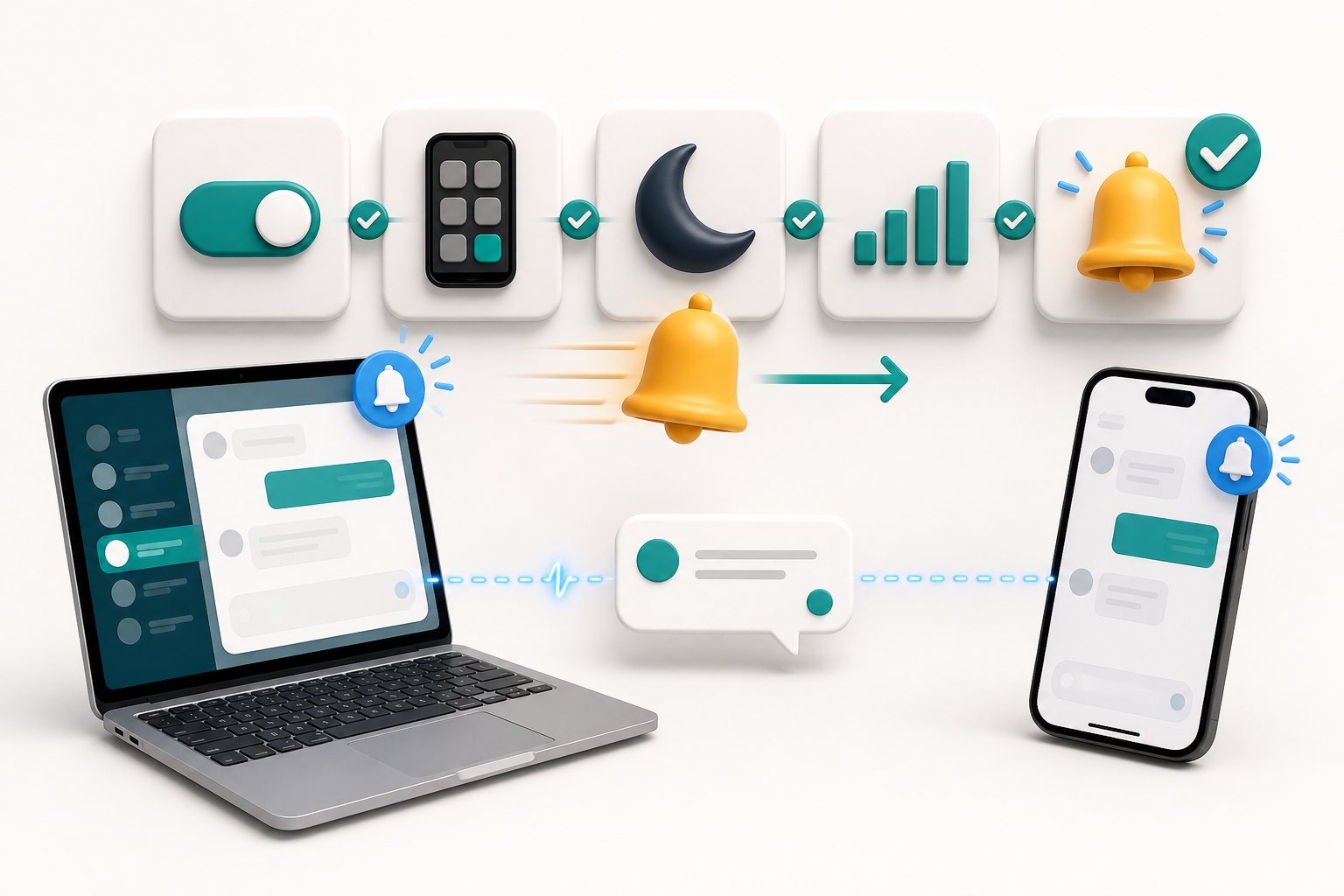
The short answer: find the first broken layer
A chat alert passes through several systems before it appears on a phone or computer. The visitor's message must reach Yapdesk, the correct agent account must be signed in, that device must have an active notification subscription, the browser and operating system must allow the alert, and the device must decide to display or sound it. One failure can look exactly like another from the agent's perspective.
Do not begin by reinstalling everything. Send one controlled test and check each layer in order. If the conversation never appears in the dashboard, the problem is earlier than the phone notification. If the conversation appears and Yapdesk's Test Alert fails on one device, focus on that device. If Test Alert succeeds but a real new chat does not, record the event details and investigate account, routing, or delivery behavior.
Keep the dashboard or ticket queue as the operational record. Notifications are an alert layer, not proof that no conversation exists. A disciplined inbox check protects customers while the alert problem is being diagnosed.
First, prove that the chat reached the correct inbox
Use a second browser or an incognito window as the visitor. Open the website, start a genuinely new conversation, and send a distinctive test message. Note the exact local time, page URL, website, and the agent account expected to receive it. Do not reuse an old chat if the issue only affects new-conversation alerts.
Open Yapdesk directly and look for that message. If it appears, the website widget and inbox path are working for this test; continue with device notification checks. If it does not appear, verify that the site is connected to the intended Yapdesk account and that you are viewing the correct organization or inbox before changing phone settings.
Also separate three different symptoms. No visual alert, no sound, and no message in the inbox are not the same problem. A silent phone can still place an alert in Notification Center. A browser can show an in-app toast while system notifications are blocked. Write down exactly what happened rather than reporting only that notifications are broken.
- Did the new conversation appear in the correct Yapdesk inbox?
- Was the expected agent signed into the correct account?
- Did an in-app toast appear while Yapdesk was open?
- Did a system banner or lock-screen alert appear?
- Was the alert visible but silent?
Sources: Yapdesk guide: Receive and reply to your first live chat
Install Yapdesk correctly on the affected device
On iPhone or iPad, open app.yapdesk.com in Safari, sign in, add Yapdesk to the Home Screen, and launch it from the installed icon. On Android, use Chrome and choose Install app or Add to Home screen. Sign in with the account that actually receives chats for the website being tested.
Inside Yapdesk, select Enable Alerts and approve the notification request. Then open Chat Settings and use Test Alert. The test checks the alert behavior available on that device, including the in-app and system notification path. Run it while the app is visible, then again after putting it in the background.
Set up every phone and computer separately. Permission granted on a laptop does not grant permission on an agent's phone, and installing the app on one phone does not subscribe another. When several agents report different results, treat each device as its own configuration until testing proves otherwise.
- Open app.yapdesk.com in the recommended browser and sign into the intended account.
- Install or add Yapdesk to the home screen, then open the installed icon.
- Choose Enable Alerts and approve the browser or operating-system prompt.
- Run Test Alert from Chat Settings and record which alert types appear.
- Repeat the test after the app moves to the background.
Sources: Yapdesk guide: Install the mobile app and enable notifications
Check both browser permission and device permission
A notification can be allowed in one layer and blocked in another. First inspect permission for app.yapdesk.com in the browser or installed web app. It should be allowed, not blocked, reset, or still waiting for a decision. Then inspect the operating system's notification settings for the browser or installed Yapdesk app.
If permission was denied, clicking Enable Alerts again may not show a new prompt because browsers remember the decision. Change the site permission in browser settings, return to Yapdesk, and subscribe again. If the permission state looks inconsistent after an update, reset only the relevant site's permission rather than clearing all browsing data immediately.
Google explains that Chrome can use quieter permission prompts and may remove permission from sites that have not been used recently. Chrome's Safety Check can also identify removed permissions. This is one reason a setup that worked months ago may need a new review even though nobody intentionally changed it.
Sources: Google Chrome Help: Use notifications to get alerts · Google Chrome Help: Manage safety and removed permissions
Fix live chat notifications on iPhone and iPad
For standards-based Web Push on iPhone and iPad, WebKit documents support for web apps added to the Home Screen. The web app requests permission after a direct user action, and the user can then manage permission in iOS or iPadOS notification settings. Opening a normal browser bookmark is not the same setup as launching the installed Home Screen web app.
In Settings, find the installed Yapdesk app and confirm Allow Notifications is on. Review Lock Screen, Notification Center, banners, sounds, and badges according to how the agent expects to be alerted. Apple notes that notification display and sounds are configurable per app, so a permitted notification may still be quiet or appear somewhere the user is not watching.
Check Focus modes and scheduled summaries. A Focus can silence or delay alerts without revoking permission. Test once with Focus off and the phone unlocked, then with the app in the background and the phone locked. Avoid changing five settings between tests; one change at a time makes the result meaningful.
After an iOS, browser, or Yapdesk update, open the installed app and run Test Alert again. If several iPhones fail while Android and desktop continue to work, record the iOS version, device model, installation method, permission state, and test time before escalating.
Sources: WebKit: Web Push for Home Screen web apps on iOS and iPadOS · Apple Support: Turn notifications on or off for an app · Apple Support: Use notifications on iPhone or iPad
Fix live chat notifications on Android
Open Yapdesk from its installed icon, not an old incognito tab. Chrome states that private browsing does not receive notifications. In Chrome, open the site information and confirm Notifications is set to Allow. Also check Android's app notification settings for Chrome or the installed web app, depending on how the device presents it.
Review Do Not Disturb, notification categories, battery-saving rules, and background restrictions. Menu names vary by Android version and phone manufacturer, so search the device's Settings for notifications and battery if the expected path differs. Test on a normal connection with Data Saver and aggressive power-saving modes temporarily disabled, then restore settings one at a time to identify the cause.
Chrome may remove permission for a site that has not been used recently. Open Yapdesk regularly enough to confirm the session and permission are still healthy, and rerun Test Alert after browser or operating-system updates. If alerts work while the app is open but consistently fail in the background, include that exact distinction in the support report.
Sources: Google Chrome Help: Change site permissions on Android
Check desktop browser and operating-system settings
On desktop, verify notification permission for app.yapdesk.com in the browser, then check the operating system. A browser can be allowed at the site level while Windows or macOS suppresses its banners. Confirm the browser is permitted to send notifications and that banners, sounds, and Notification Center are configured as expected.
On Windows, Do Not Disturb can silence banners manually or under automatic conditions such as full-screen use, gaming, or scheduled hours. Microsoft notes that suppressed alerts can still go to Notification Center. This can make delivery appear to fail when the alert was received but not shown as an interruption.
Run Test Alert with the Yapdesk tab active, in another tab, with the browser minimized, and after the screen has been locked and unlocked. If the result changes by state, record that pattern. Also test the browser profile the agent normally uses; permission in one Chrome or Edge profile does not automatically apply to another.
Sources: Microsoft Support: Notifications and Do Not Disturb in Windows
Use a controlled test matrix
A single successful alert is encouraging, but it does not prove that every agent and device is ready. Test the combinations that matter to the support workflow. Keep the message, account, and website constant while changing one condition at a time.
For each device, record Test Alert, a real new visitor chat, app visible, app in background, device locked, sound on, and Focus off. Then repeat only the conditions where the team actually expects interruptions. A simple matrix reveals whether the failure follows one phone, one account, one operating system, or one type of event.
Do not promise customers an immediate response based only on push delivery. Use Chat Active when an agent is truly monitoring conversations and Message mode when the team will follow up later. Yapdesk's free core includes live chat and Message mode with Yapdesk branding; notification troubleshooting does not require AI. AI and hybrid replies remain optional Pro AI features.
- Device model, operating-system version, and browser version
- Installed app or ordinary browser tab
- Signed-in agent account and website inbox
- Notification permission in both browser and operating system
- Focus, Do Not Disturb, sound, and battery-saving state
- Result of Test Alert and a real new-conversation alert
What to collect before contacting support
If the problem survives the checklist, send evidence that lets support reproduce it. Include the agent account email without sharing a password, the affected website, device and operating-system versions, browser, installation method, exact test time with time zone, permission screenshots, and whether the conversation appeared in the inbox.
State the smallest reproducible symptom: for example, Test Alert shows an in-app toast but no iPhone system notification when the Home Screen app is in the background. That is much more actionable than saying alerts sometimes fail. Mention whether another device on the same account works, because that separates device configuration from account-wide behavior.
Never send passwords, recovery codes, full payment details, or private visitor conversations in an initial troubleshooting message. Use a fresh test conversation and redact unrelated personal information from screenshots.
Start with free live chat
Add Yapdesk to WordPress, answer visitors from one inbox, and use message mode when your team is away. Pro AI is available when you want an AI assistant trained on your business.