
First identify which notification is missing
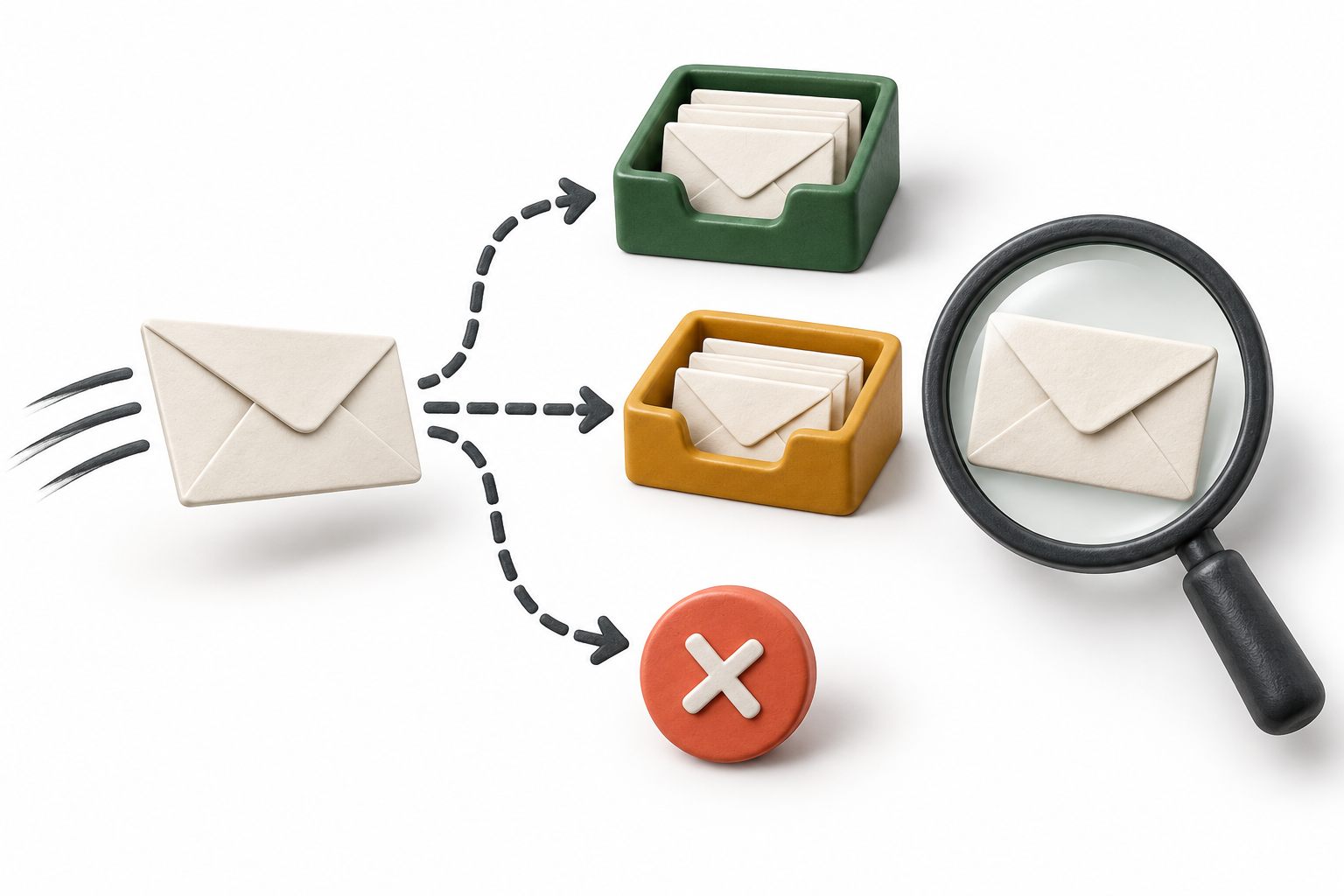
A customer reply, a team email copy, and a phone push alert are different deliveries. Ask which one is absent before troubleshooting. A phone notification appearing does not prove the customer received an email, and an email arriving in your shared support mailbox does not prove that a copy reached the visitor.
In Yapdesk, ticket replies use the ticket's requester email. Ticket Notification Email in Chat Settings controls the team's email copy and is also used as the reply-to address for ticket replies when configured. It is not a replacement for the customer's destination address. Leaving the team-copy field blank does not turn off customer reply attempts.
If the missing item is a phone push alert for a new chat, use the separate notification guide. This article concerns outbound ticket email. Core human live chat and message mode are free with Yapdesk branding; AI and hybrid replies are Pro AI features and are not required for this troubleshooting process.
Confirm the recipient without guessing a correction
Open the original ticket and compare the requester email with the address the customer intended to use. Common mistakes include a mistyped domain, an old work address, or a visitor checking a different account on their phone. Confirm the full address through your approved support process rather than guessing which spelling looks right.
Do not forward the whole conversation to a newly supplied address until your business's identity and authorization checks are satisfied. A change of contact address can expose private information if it is treated as a harmless typo. Use only the information needed to establish a valid follow-up route.
Also verify that you are in the correct website's ticket queue. A similar name or subject is not enough to identify the request. Record the ticket reference and send time so the next person can investigate the same message instead of starting a second case.
Read the send result before asking the customer to search
Yapdesk can save a ticket reply even when the email attempt fails. The ticket displays Email sent after a successful send operation, or a warning that the reply was saved but the email was not sent. If you see the warning, the next step is to investigate the destination or sending configuration, not to insist that the customer check spam again.
Email sent is not an inbox-placement or read receipt. The current status reflects the mail-sending operation, not a confirmation from the recipient. A later rejection, filtering decision, or mailbox problem still needs investigation. A team copy arriving is evidence about that mailbox only.
This distinction also matters with multiple recipients: Nodemailer's documentation explains that a send can be considered successful when at least one recipient is accepted. Do not treat a general send-success label as proof that every address was accepted. Ask the service operator to inspect recipient-specific results when needed.
Help the customer find a message that may already be there
Give the customer a useful search clue: the approximate send time and the ticket reference or subject. Current Yapdesk ticket-reply subjects include Yapdesk, the ticket identifier, and Reply. Do not tell them to search for your own email address unless you have verified that it is the actual From address.
In Gmail, a search such as in:anywhere Yapdesk includes Spam and Trash as well as ordinary mail locations. Narrow it with the ticket reference when necessary. The customer should inspect only the expected message and verify the sender before opening links or files.
Google's missing-message guidance also recommends checking filters, forwarding, and mailbox storage. A rule can move mail out of the inbox, and full account storage can prevent receipt. Suggest checking the mailbox through its own web interface if the message is missing only in a phone mail app. Do not ask the customer to disable all filtering or send screenshots of their entire inbox.
Sources: Gmail: search operators, including in:anywhere · Gmail: find missing messages
Find out whether one address or many addresses are affected
Run a clearly labeled test using a mailbox your team controls, not another customer's address. Use a short, harmless reply without attachments or private account details. Record the destination, send time, ticket reference, application result, and whether the test message actually arrives.
A second controlled mailbox with a different provider can help narrow the problem. If one destination fails while another works, investigate the failing address or provider without declaring the entire sending service healthy. If multiple destinations fail, check the common sending path first. These tests are clues, not a deliverability score.
Keep the original ticket open while you investigate. Avoid repeated resends without a specific reason: they can leave the customer with multiple versions of an answer once mail starts arriving. When a resend is necessary, identify it clearly and keep the same support reference.
Escalate to the operator of the actual email service
Yapdesk's hosted backend sends ticket email; the WordPress plugin connects your site and loads the chat widget. Installing a WordPress SMTP plugin is therefore not, by itself, a fix for Yapdesk ticket-email delivery. First identify the actual sending service and domain rather than changing an unrelated mail path.
Give Yapdesk support the affected ticket reference, approximate timestamp with time zone, destination through an approved private channel, and the exact warning shown. Ask for the sending result and any available recipient-specific rejection or later failure information. Do not post customer addresses, complete message headers, attachment links, or transcripts in a public forum.
If authentication is implicated, the sending-service operator should verify the actual domain's configuration. Google's guidelines for personal Gmail recipients require SPF or DKIM for all senders, with SPF, DKIM, and DMARC required for bulk senders under its criteria. Google recommends all three more broadly. These controls improve authentication; they do not guarantee inbox placement.
Do not copy an SPF record from a tutorial, replace working DNS records, or weaken DMARC simply to make a test pass. Authentication changes must account for every legitimate service sending on that domain. A team-copy address alone does not establish which domain needs those changes.
Sources: Google: email sender requirements and authentication
Continue the support work while delivery is being checked
When the visitor is still in live chat, provide the next safe step there instead of making email the only route forward. For follow-up elsewhere, use a verified channel the customer has agreed to. Do not send sensitive details through a new channel merely because it is convenient.
Tell the customer what is known, what remains unconfirmed, and when you will update them. For example: 'Your request is recorded. The email delivery is still being checked, so please keep this ticket reference. I will update you here by the time we agreed.' Use a time your team can actually meet.
Treat successful delivery and resolution of the original issue as separate checks. Finding the email does not mean the customer's problem is solved; saving a complete answer does not mean the customer has seen it. Close the loop on both before marking the work finished.
Test email follow-up during your first setup
Before relying on tickets for real customers, send one test request with an address you control, reply from the dashboard, and confirm receipt in that mailbox. If you use a team notification address, verify its copy separately. Repeat after changing the relevant mailbox or sending configuration.
Start with the official WordPress plugin and the ticket guide below. The aim is a verified conversation from visitor message to agent reply and customer receipt, not just a working launcher or a green-looking status. Keep the test reference so you have a known example for future troubleshooting.
Sources: Yapdesk support: Create and manage tickets · Install Yapdesk Live Chat on WordPress · Official Yapdesk plugin on WordPress.org
Start with free live chat
Add Yapdesk to WordPress, answer visitors from one inbox, and use message mode when your team is away. Pro AI is available when you want an AI assistant trained on your business.