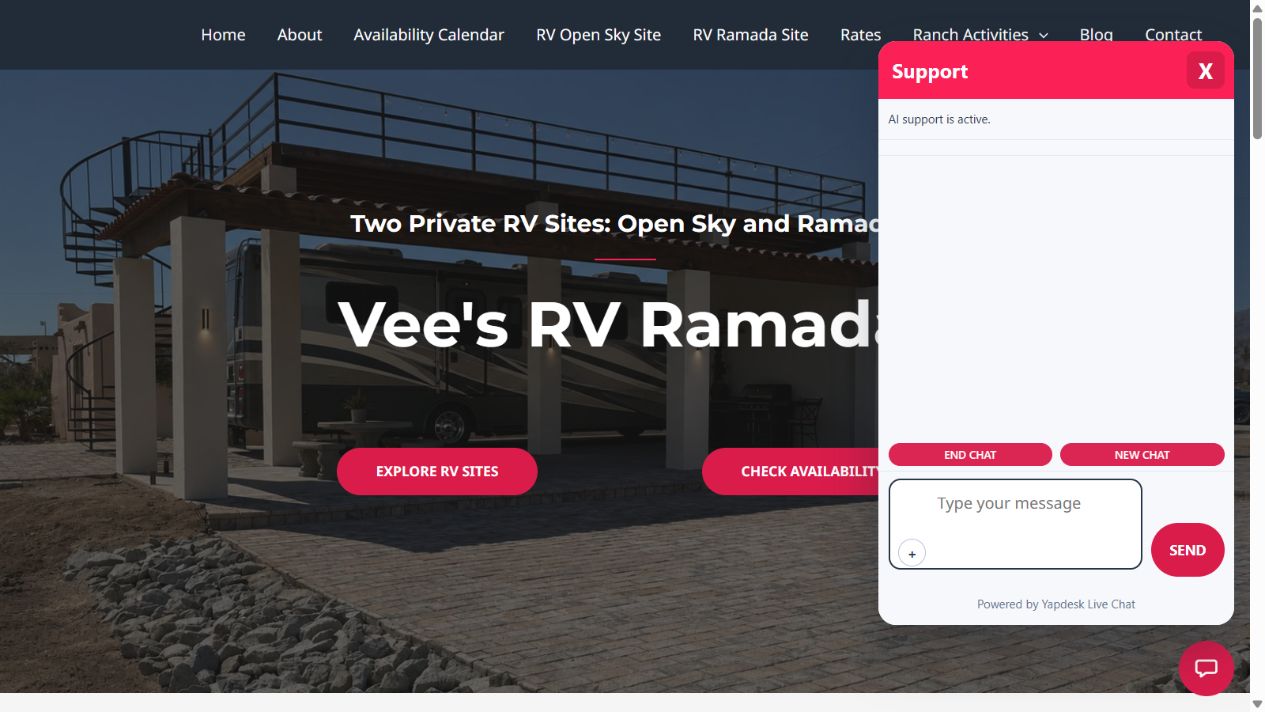
Open the Yapdesk plugin screen
In WordPress admin, select Yapdesk Live Chat. The page shows whether the site is connected and provides a direct button to the Yapdesk dashboard.
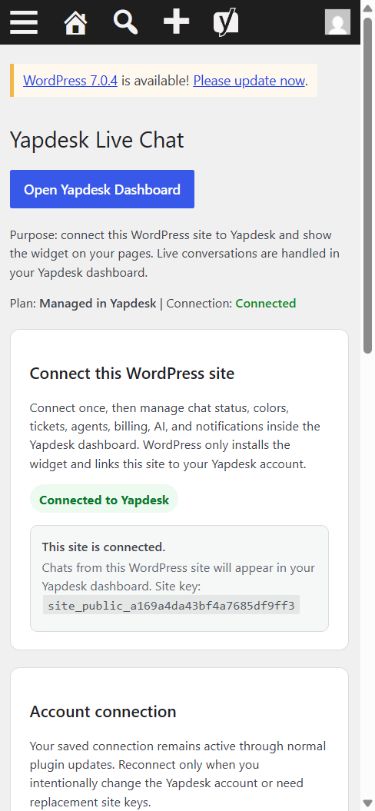
Read the connection status
Connected to Yapdesk means the plugin has the site keys required to load the widget. A normal plugin update should not remove those saved settings, so do not reconnect after every update.
Run Check Connection
Select Check Connection under Open your Yapdesk dashboard. This asks Yapdesk for the current site configuration and confirms that the saved connection still works.
Reconnect only when needed
Expand Reconnect with a different account only when you intentionally want to move the site to another Yapdesk account or replace its site keys. Select Sign in to my account and enter the email and password for the account that should own this website. If you intentionally need a new account, choose Create a free account and complete its business-name and password-confirmation fields. Accept the branding notice and select Reconnect account.
Verify the public result
Open a public page while signed out of WordPress and launch the widget. If the site uses cache or a CDN, clear that cache after reconnecting, then check both desktop and mobile.